
There are two areas where you can find changes made to Teams within KYC Protect. For more guidance on how to find these, please see the information below, or view this interactive demonstration.
Please note: The main Audit section in the left menu will not yet be displayed, but will be coming soon.
Before viewing the changes made, please confirm you are working in the correct Team in KYC Protect. you can view and change your team in the KYC Protect Profiles area.
Change Log:
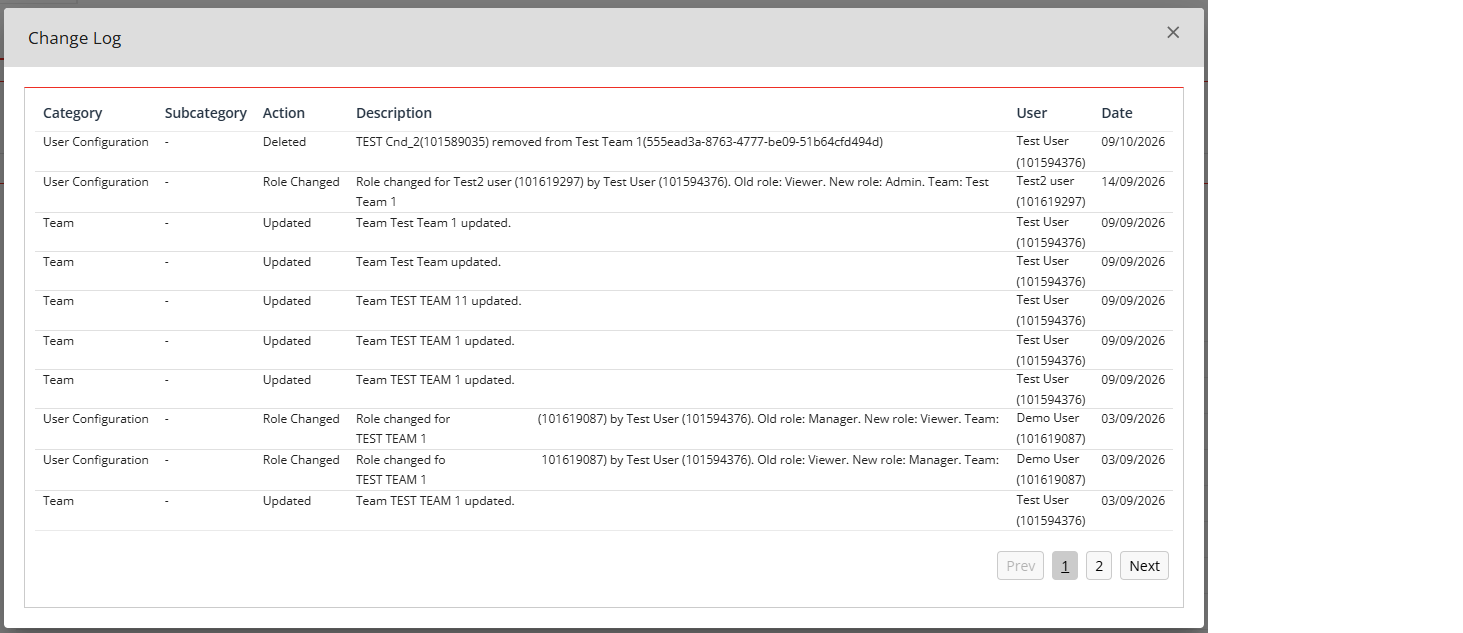
The Change Log will show all changes made to a team within KYC Protect
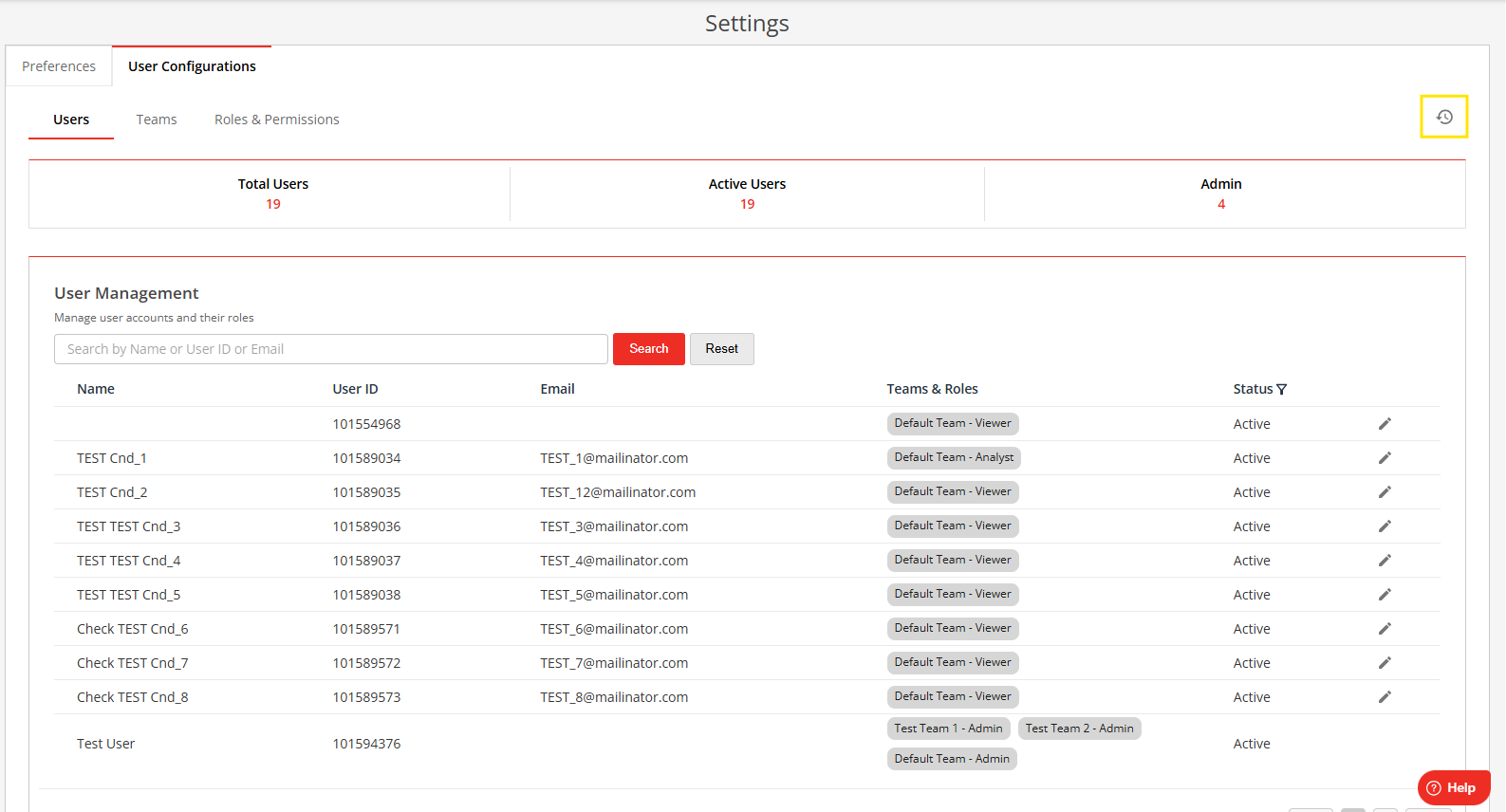
- In the KYC Protect Menu on the left of the page, click the Settings option
- Within the Settings area, confirm the team you are working on and then click on the User Configurations tab
- Click on the small grey clock icon on the top right of the screen
- The Change Log will then open in a pop-up window
- To exit this, click the cross icon on the pop-up. You will be taken back to the User Configurations page
Reports:
An Audit Report will hold details of changes made to the relevant team in KYC Protect. The report will be available in a spreadsheet where you can select the "Team" option in the Category column (column F).
- In the KYC Protect menu, click the Reports option
- In the Reports page, click on the Audits tab
- Add in a title for the report
- Configure your start and end dates for the Report
- Click the red Order Report button
- The Report will begin processing and will be visible in the Order History
- Once the Report is ready, click the download icon to download the Report to your computer