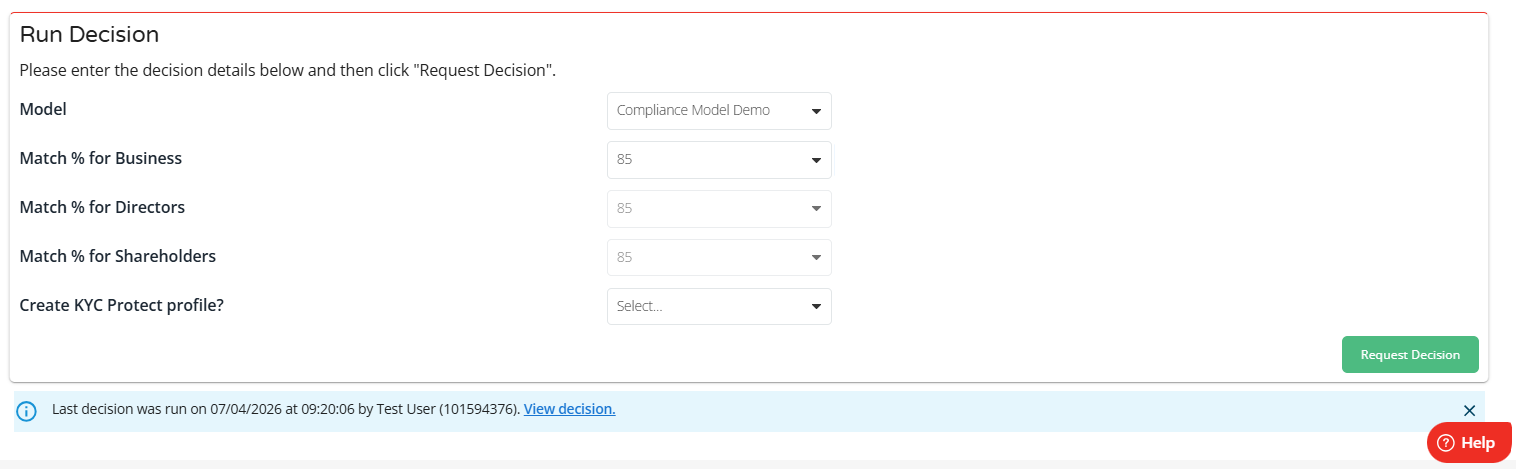
Yes. It is possible to set screening defaults for Compliance models in Check & Decide. You can learn how to do this by viewing this interactive demonstration, or by following the below steps.
- In the Creditsafe Platform, click on Credit and Risk on the left
- Click on Check & Decide
- Click on Configuration
- Click on Model Configuration
- Select the Decision Model you want to update, then click the green View Configuration button. This will need to be a Compliance Model
- The Decision Model will then open
- To edit this, scroll to the bottom of the page and click the green Edit Configuration button
- This will unlock the page for editing
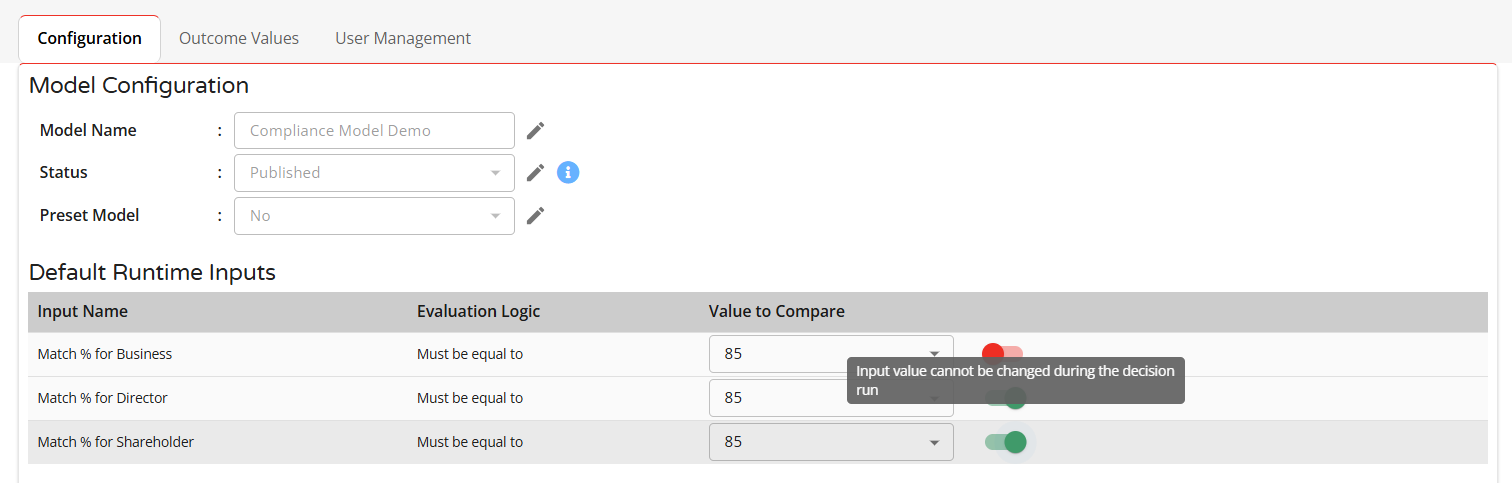
- Under the Default Runtime Inputs section, you can enable/disable and set your match % thresholds for the following fields:
- Match % for Business
- Match % for Directors
- Match % for Shareholders
- Please note: You can update the toggles to lock/unlock the defaults for user editing. If these are red then the user can override the default values when running a decision. If the toggle is set to green, then these values are locked for editing.
- When you have finished making your edits, click the green Save Configuration button
- Your updates will now be saved
- Users will now see the default inputs when they use the decision model
When a user runs a decision using the decision model, they will see the defaults already configured. This is pictured below: